Upload
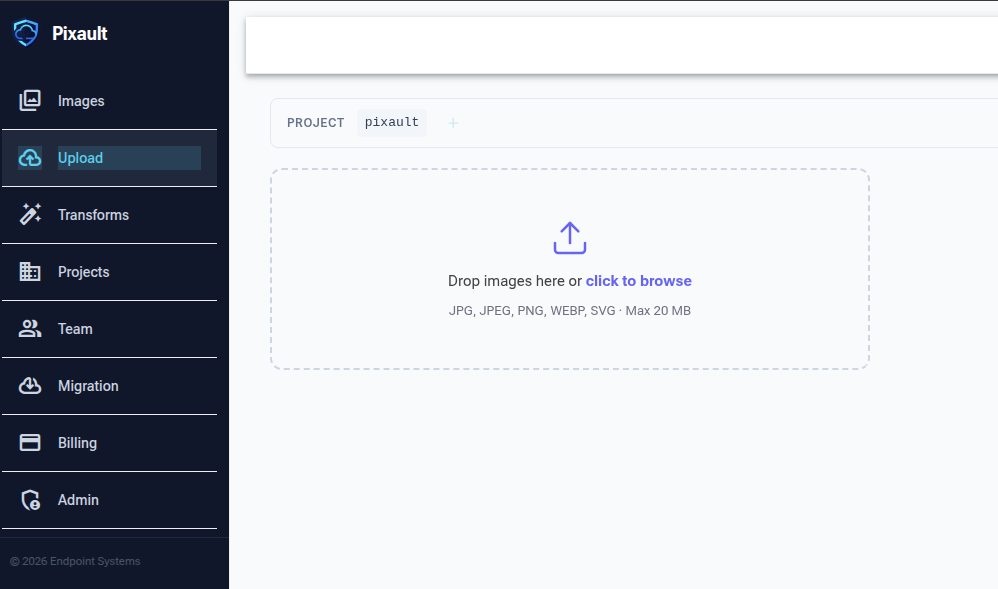
The Upload page lets you add images to your project through a drag-and-drop interface.
Uploading Images
Drag files onto the upload area, or click to browse your file system. You can upload multiple files at once.
Supported formats include JPEG, PNG, WebP, AVIF, GIF, SVG, EPS, TIFF, and BMP. Video uploads (MP4, WebM) are also supported.
EPS files (up to 50 MB) are automatically rasterized to high-resolution PNG after upload. A processing indicator shows progress, and derived assets appear in the image detail view once complete. For EPS files containing multiple designs, use the Split Designs button in the image detail panel to extract individual designs automatically. Use Extract SVG to convert the EPS to a scalable vector SVG, preserving all vector paths.
Folder Selector
Above the drop zone, a Folder selector lets you choose which folder uploaded images are placed into. If your project already has folders, a dropdown lists them for selection. If no folders exist yet, a text input appears so you can type a new folder name. Leaving the folder blank uploads images to the project root.
Upload Options
Before uploading, you can optionally set:
Custom ID — attach your own external identifier
Upload Progress
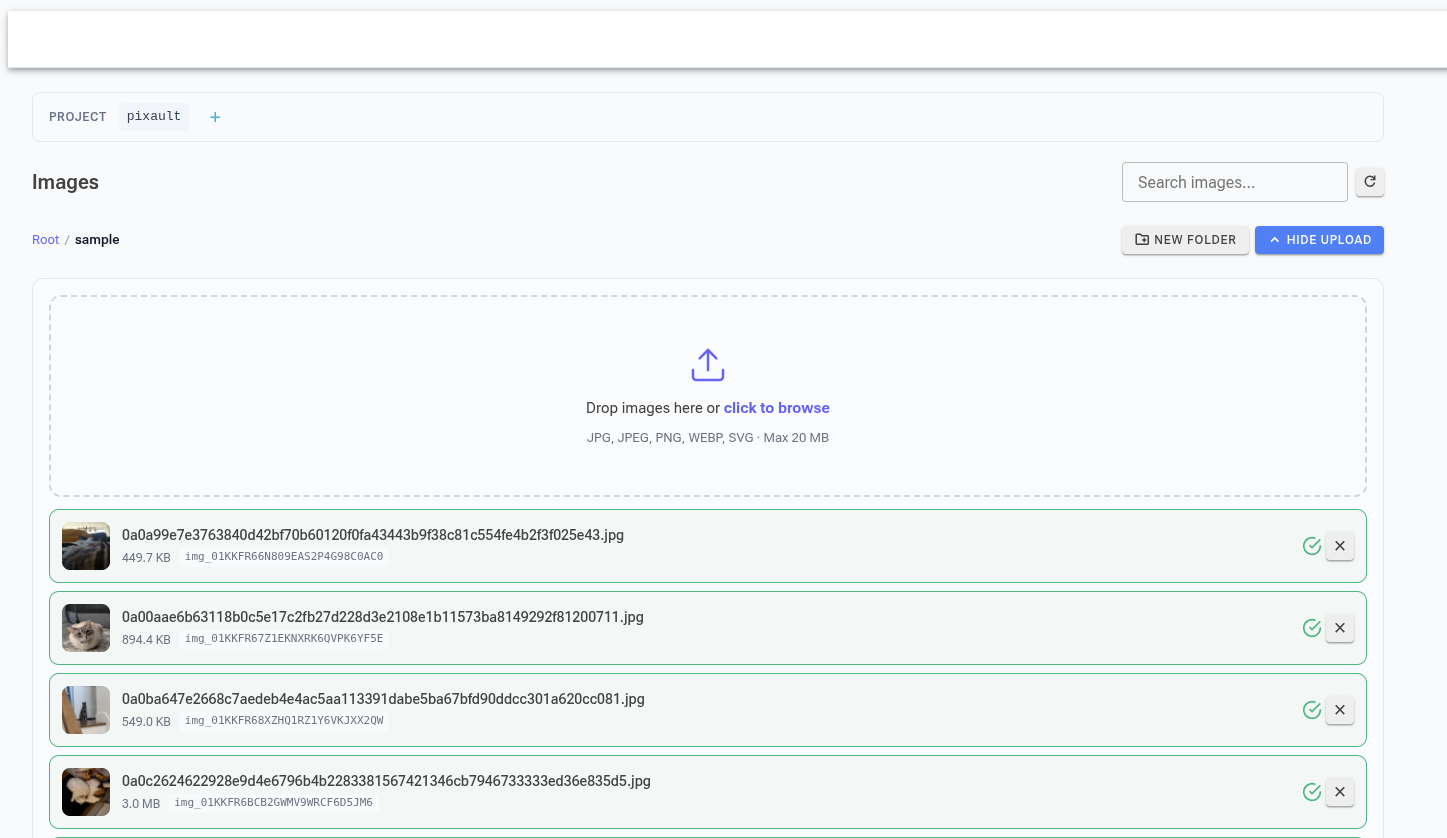
Each file shows a progress bar during upload. Once complete, the image appears in your Image Library.